🔒 OverSOC Gateway
Deploy a pre-configured VM in your DMZ for secure, agentless API access — no VPN setup, no inbound ports
What is This?
A pre-configured VM that gives OverSOC secure access to your internal APIs without complex VPN setup. Deploy in your DMZ, configure firewall rules, and you're done in less than 1 hour.
The solution uses Tailscale, a modern mesh VPN built on the WireGuard(r) protocol.
Key benefits:
- ✅ No IPSec tunnels or certificates to manage
- ✅ No inbound ports to open on your firewall
- ✅ VM auto-configures on first boot
- ✅ Only OverSOC can access the VM (private network isolation)
- ✅ You control exactly which APIs to expose
What's included: Ubuntu 24.04 LTS VM with Tailscale VPN pre-installed.
How It Works
Architecture Overview
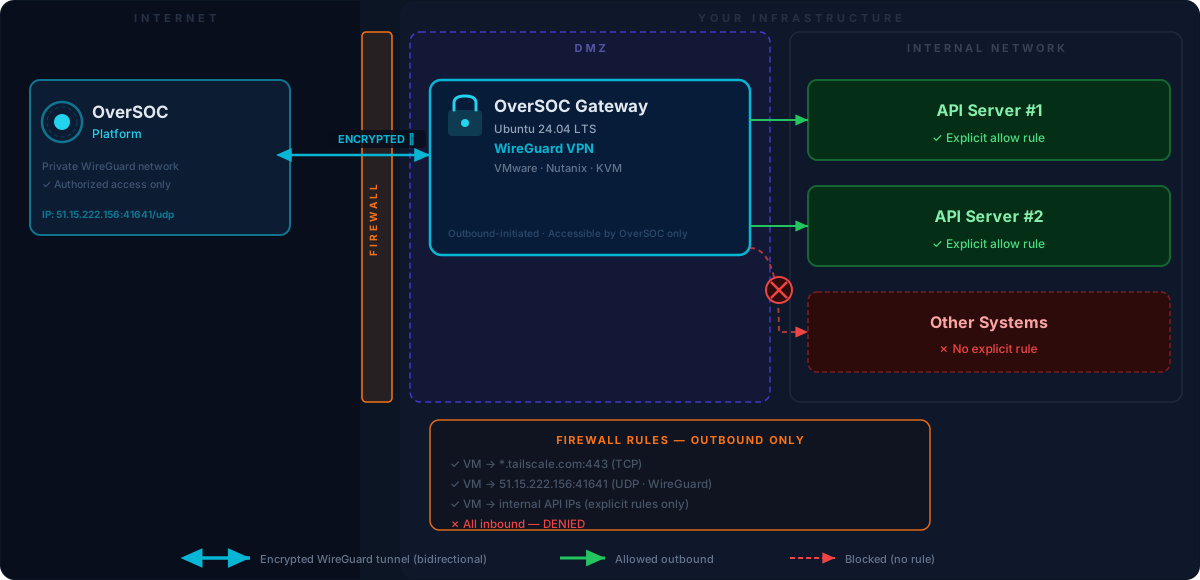
The VM sits in your DMZ and acts as a secure bridge between OverSOC and your internal APIs. All connections are outbound-initiated from the VM — no holes in your firewall.
Security Model
Private Network Isolation:
- The VM joins OverSOC's private Tailscale network (tailnet)
- Only OverSOC platform can access it — not the public internet, not other Tailscale users
- The VM cannot access OverSOC infrastructure — it only relays your APIs
Zero Trust by Default:
- VM starts with zero access to your internal network
- Each API requires an explicit firewall rule
- No lateral movement possible
Encryption:
- WireGuard with ChaCha20-Poly1305
- End-to-end encryption between OverSOC and your VM
- Keys rotated automatically
How Traffic Flows:
- Direct peer-to-peer when possible (best performance)
- Encrypted relay fallback when direct connection is impossible
- Coordination service (*.tailscale.com) only handles authentication — does NOT route your data
Deployment Guide
Prerequisites
- Hypervisor: VMware vSphere/ESXi, Nutanix AHV, or KVM
- Resources: 2 vCPU, 2 GB RAM, 10 GB storage
- Network: Outbound internet access, DNS resolution
- Placement: DMZ or isolated VLAN
Delivery Format
| Hypervisor | Format | File |
|---|---|---|
| VMware ESXi / vSphere | OVA | ovsgw-{name}.ova |
| Nutanix AHV | QCOW2 | ovsgw-{name}.qcow2 |
Phase 1: Deploy the VM (15 minutes)
VMware ESXi / vSphere
- Open the vSphere Client (web interface)
- Right-click on the host or cluster > Deploy OVF Template...
- Select Local file and choose the provided
.ovafile - Follow the wizard: name the VM, choose datastore, select network (VLAN/portgroup)
- Click Finish and wait for the import to complete
- Power on the VM
Nutanix AHV
- Open Prism Central > Compute & Storage > Images > Add Image
- Upload the provided
.qcow2file, type Disk, place on the target cluster - Go to Compute & Storage > VMs > Create VM
- Configure: 2 vCPU, 2 GB RAM
- Attach a disk: Clone from Image > select the uploaded image
- Add a NIC on the desired subnet/VLAN
- Save and power on the VM
Network Configuration
The VM is configured with DHCP by default. If your network has a DHCP server, the VM will automatically get an IP address at boot.
If you don't have DHCP, configure a static IP:
- Open the hypervisor console (VMware or Nutanix)
- Log in with username
ubuntuand the password provided by OverSOC - Edit the network configuration:
sudo nano /etc/netplan/01-netcfg.yaml
Replace the content with (adjust addresses to your network):
network:
  version: 2
  ethernets:
    all-en:
      match:
        name: "en*"
      addresses: [192.168.100.10/24]
      routes:
        - to: default
          via: 192.168.100.1
      nameservers:
        addresses: [8.8.8.8, 1.1.1.1]
- Apply and restart the VPN connection:
sudo netplan apply
sudo systemctl restart tailscale-gateway-init
Verification
- The console banner displays the LAN IP and Tailscale IP after boot
- When connecting via SSH, the welcome message displays VPN connection status
Phase 2: Configure Firewalls (15-30 minutes)
All rules are OUTBOUND — no inbound ports required
Edge Firewall (DMZ -> Internet):
Source: VM IP (e.g., 192.168.100.10)
Destination: *.tailscale.com:443/tcp
Action: ALLOW

Source: VM IP
Destination: derp*.tailscale.com:443/tcp,udp
Action: ALLOW

Source: VM IP
Destination: 51.15.222.156:41641/udp (OverSOC outbound IP)
Action: ALLOW

Default: DENY all other outbound
Internal Firewall (DMZ -> Internal Network):
Source: VM IP (e.g., 192.168.100.10)
Destination: 10.0.1.50:8443/tcp (target API)
Action: ALLOW

Source: VM IP
Destination: 10.0.0.0/8 (all other internal)
Action: DENY
The OverSOC Gateway does not resolve your internal DNS. You must configure destinations using IP addresses of your services, not DNS hostnames.
Key point: Only the VM initiates connections. Your internal network cannot connect to the VM.
Phase 3: Activation and Adding Data Sources
Once the VM is deployed and firewalls are configured, inform OverSOC that the VM is online. OverSOC verifies the VPN connection and validates proper operation.
Once the Gateway is connected, it automatically appears in your OverSOC interface when you add a data source. You configure access to target APIs yourself:
- In OverSOC, go to Data Sources > Add
- Select your Gateway as the collection point
- Enter the connection details for the target API
The Gateway does not resolve your internal DNS. When configuring data sources, you must enter IP addresses of your services (e.g., 10.0.1.50), not DNS hostnames (e.g., api.internal.corp
Your actions:
- Ensure your internal firewall rules allow the VM to reach your target API IP addresses
- Add your data sources in OverSOC using IP addresses of your services
VM Access
| Method | Details |
|---|---|
| Console (VMware/Nutanix) | Login: ubuntu, password provided by OverSOC |
| SSH | ssh ubuntu@<LAN_IP> (SSH key provided by OverSOC if applicable) |
Security recommendation: once the VM is connected to the network, configure an SSH key and disable the password:
# Add your SSH key
echo "ssh-ed25519 AAAA... your@email" >> ~/.ssh/authorized_keys

# Disable password
sudo passwd -d ubuntu
Useful commands:
tailscale status— Check VPN connection statussudo gateway-reconfig— Reconfiguration menu (change VPN key, reconnect)
Technical Details
Network Flow Requirements
Reference: Tailscale Firewall Ports
Required outbound flows:
| Destination | Protocol | Purpose |
|---|---|---|
*.tailscale.com:443 | HTTPS/TCP | Authentication & configuration |
derp*.tailscale.com:443 | HTTPS/TCP+UDP | VPN relay (fallback) |
51.15.222.156:41641 | UDP | WireGuard VPN (OverSOC outbound IP) |
*:3478 | UDP | STUN (NAT detection) |
No inbound rules required. WireGuard uses stateful connections — responses are automatically allowed.
What's Provided
- Ubuntu 24.04 LTS VM with hardened configuration
- Tailscale VPN agent pre-configured for auto-enrollment
- Automatic security updates (OS + VPN)
- Documentation and OverSOC support
FAQ
Q: Do we need to open inbound ports on our firewall? A: No. All connections are outbound from the VM. No holes in your firewall.
Q: How do we access the VM?
A: Via the hypervisor console (VMware/Nutanix) with the ubuntu login and the password provided by OverSOC. You can also connect via SSH once the network is configured.
Q: What if the VM doesn't have DHCP? A: Connect via the hypervisor console and configure a static IP. See the Network Configuration section.
Q: Who can access the VM? A: Only OverSOC. The VM is part of OverSOC's private Tailscale network, isolated from the internet and all other access.
Q: Can the VM access our internal network? A: Only what you explicitly allow through your firewall rules. By default: zero access.
Q: What if the VM is compromised? A: The blast radius is limited to APIs explicitly allowed by your firewall rules. The VM cannot pivot to other resources.
Q: What's the performance impact? A: WireGuard overhead is < 5%. Peer-to-peer mode performs like a direct connection.
Q: What if the VPN connection drops?
A: Connect to the VM and run sudo gateway-reconfig to reconnect. If the issue persists, contact OverSOC support.
Q: How do we revoke access? A: Contact OverSOC. Revocation is instant (propagation < 30 seconds).
Q: Can we expose multiple APIs? A: Yes. Add one firewall rule per API you want to make accessible.